# Confirm Lazada order
## Prerequisite
Order from Lazada has been synced to Centralised Distribution and the order status is Pending
## Confirmation process
The confirmation process for a Lazada order on Centralised Distribution is consisted of 5 steps:
* Select order
* Initiate the confirming process
* Pack order
* Confirm order
* Print waybill
### Step 1: Select an order to process
Click on a row on the list of order that contain an order you want to confirm to go to the order details page
### Step 2: Check the order details and start confirming order
After you have verified all the information to be correct, click the **Confirm** button (arrow up symbol) to initiate the confirmation process
{% hint style="info" %}
If you are confidient with an order details being correct, you can quick confirm an order by selecting the confirm button on a row that contain an order from the order list. The result will be the same as step 2
{% endhint %}
### Step 3: Pack your order
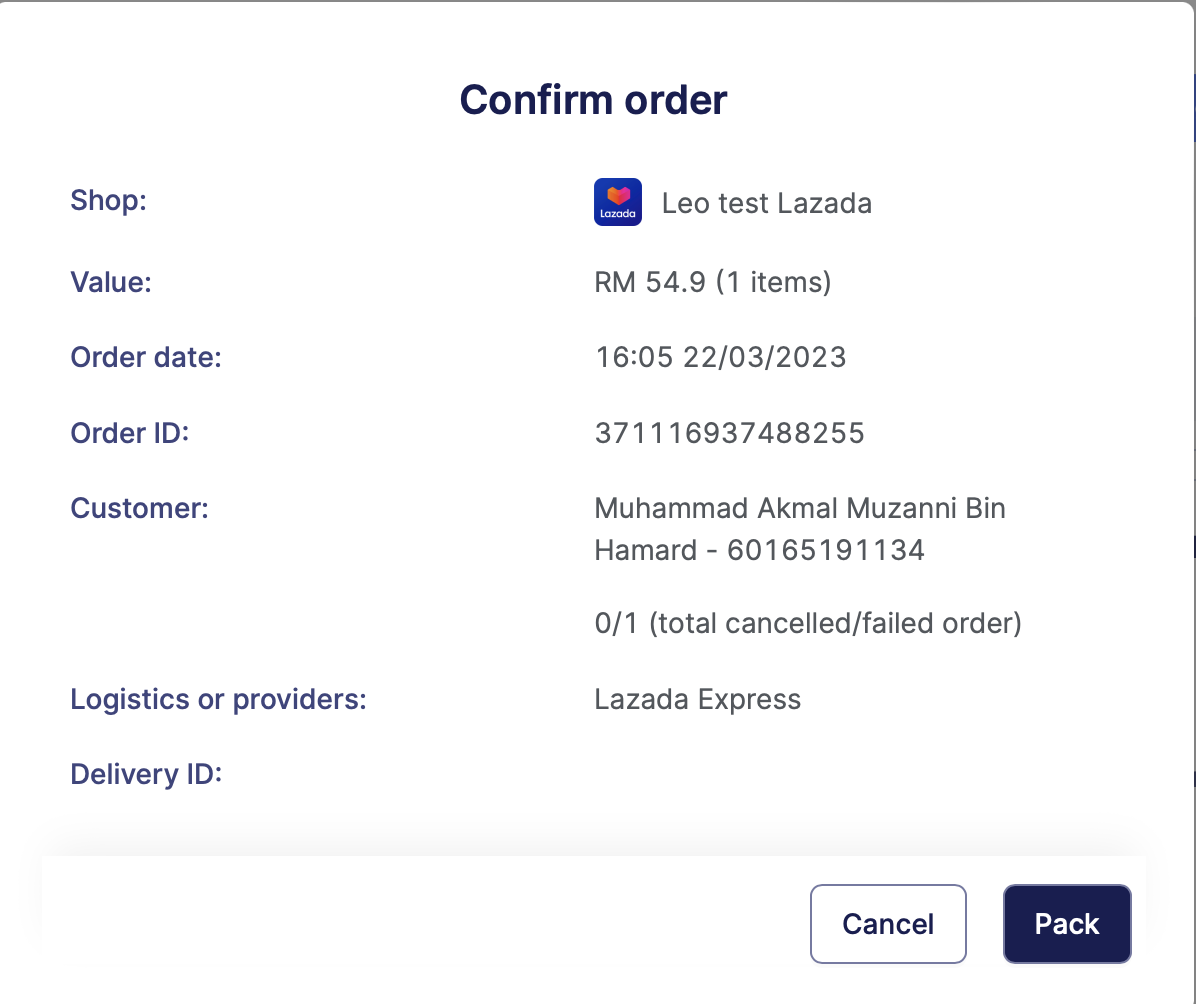
Lazada require a seller to pack the customer first prior for the order to be set as ready to ship. You can click the Pack button on the pop up to confirm packing has been done and it is now ready to be shipped
### Step 4: Confirm order
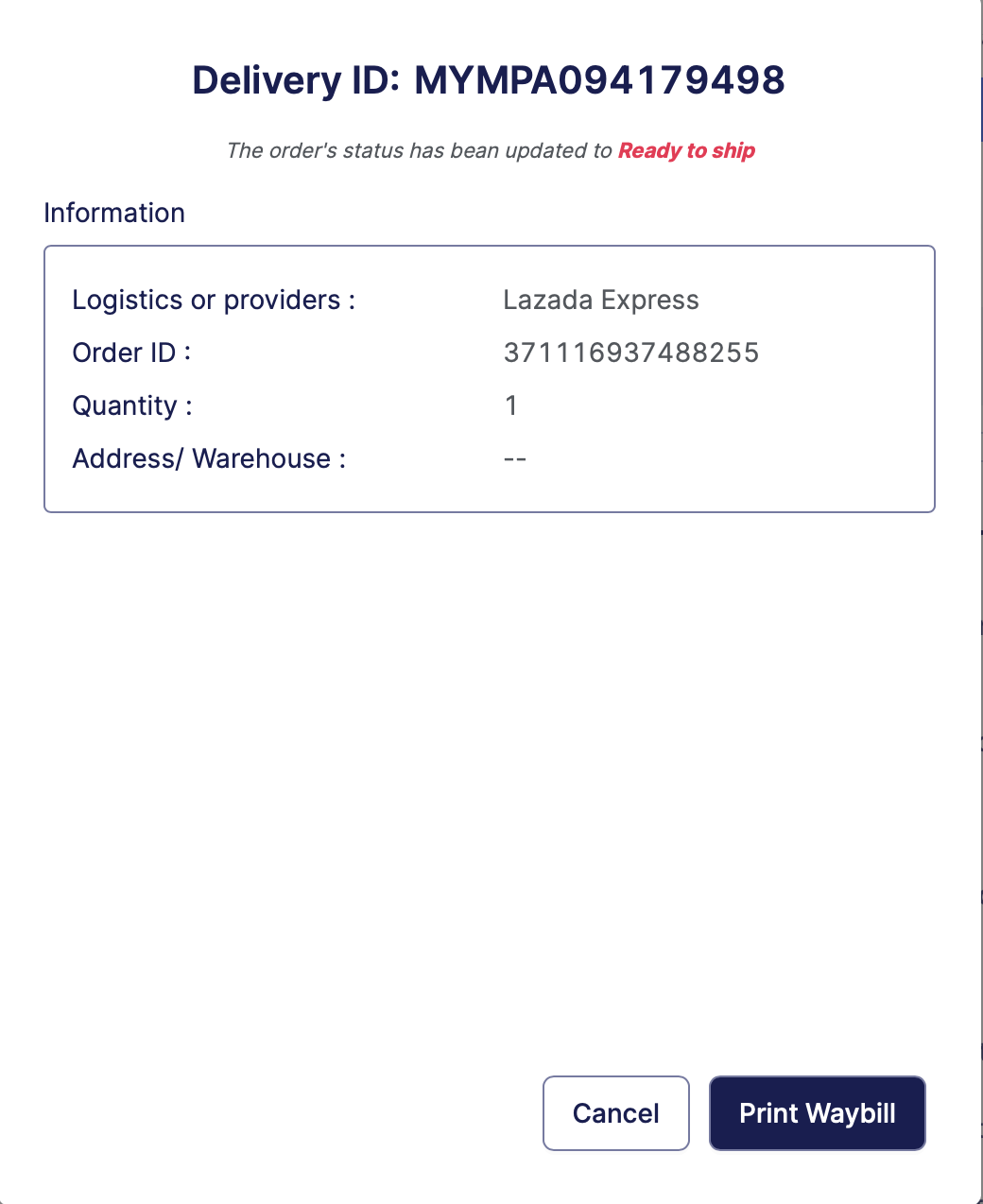
After the oder has been successfully packed, click the Confirm button to confirm with Lazada that your order is now ready to be shipped.
### Step 5: Print waybill (Optional)
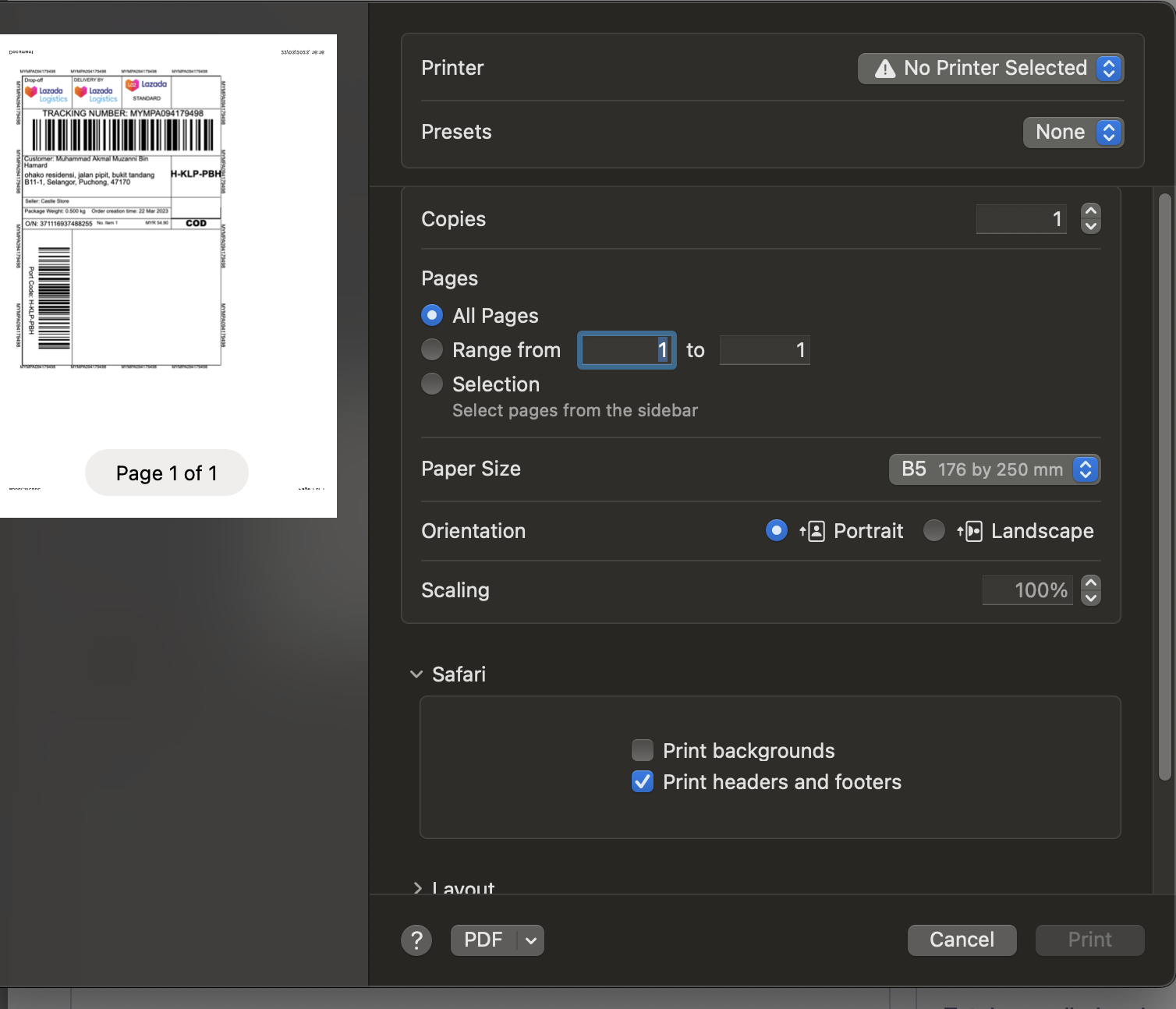
It is advisable for you to print your waybill right after you have confirm your order to be ready to ship since Lazada delivery fleet will need this paperwork.
After the order has been confirmed, click the Printwaybill button to print the document
But it is also printable at the order list screen and the guidance on how to print an order waybill can be found at:
{% content-ref url="../print-waybill" %}
[print-waybill](https://unifi-ecommerce-hub.gitbook.io/home/product-guides/centralised-distribution/order-management/order-processing/print-waybill)
{% endcontent-ref %}
### Result
You can check the result on Lazada seller centre to make sure that the order has been processed correctly.