# Print waybill
The waybill serves as proof that goods have been handed over to a carrier. It acts as a formal record of the shipment. Each waybill contains a unique tracking number or barcode that allows both the sender and the recipient to track the shipment's status throughout its journey.
## Pre-requisites
The orders were confirmed successfully.
## Step-by-step status
{% content-ref url="confirm-order" %}
[confirm-order](https://unifi-ecommerce-hub.gitbook.io/home/product-guides/centralised-distribution/order-management/order-processing/confirm-order)
{% endcontent-ref %}
## Print the waybill after the confirmation process
The print waybill procedure consists of the 3 steps:
* Step 1: Select an order
* Step 2: Initiate the print waybill action
* Step 3: Confirm your decision and print waybill
### Step 1: Select an order to print waybill
Click on a row that contains a suitable order to go to the order details page
Follow the three tables below to understand which order with the corresponding status can provide you with a printable waybill
For Shopee order
| Order status | Unpaid | Pending | Ready to ship | Shipping | Completed | Failed | Cancelled | Returned | Other |
| ------------------ | ------ | ------- | ------------- | -------- | --------- | ------ | --------- | -------- | ----- |
| Waybill available? | NO | NO | NO | YES | NO | NO | NO | NO | NO |
For Lazada order
| Order status | Unpaid | Pending | Ready to ship | Shipping | Completed | Failed | Cancelled | Returned | Other |
| ------------------ | ------ | ------- | ------------- | -------- | --------- | ------ | --------- | -------- | ----- |
| Waybill available? | NO | NO | YES | YES | YES | YES | NO | NO | NO |
For Web Store/Social CRM order
| Order status | Unpaid | Pending | Ready to ship | Shipping | Completed | Failed | Cancelled | Returned | Other |
| ------------------ | ------ | ------- | ------------- | -------- | --------- | ------ | --------- | -------- | ----- |
| Waybill available? | NO | NO | YES | YES | YES | YES | NO | NO | NO |
### Step 2: Check the order details and select print waybill action
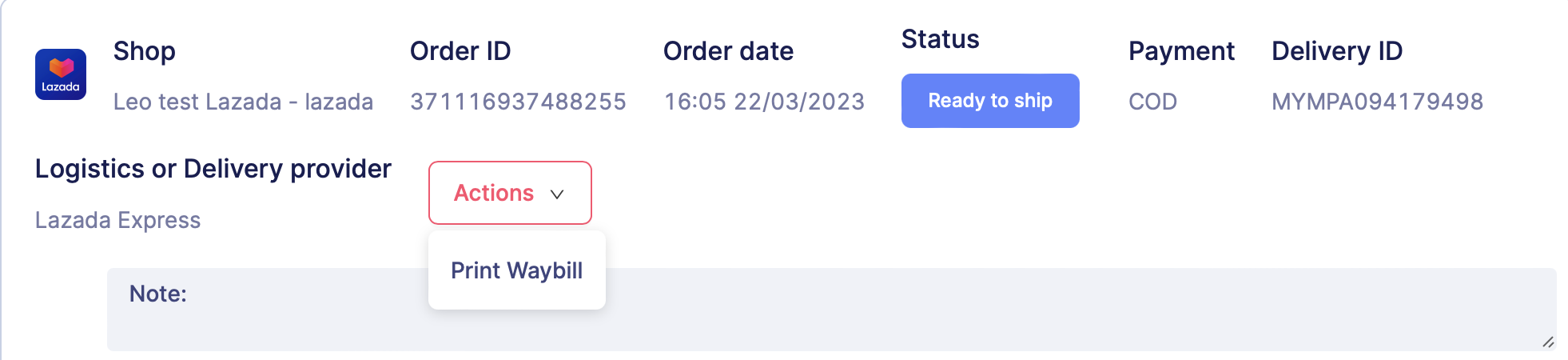
After you have verified all the information to be correct, select the Print waybill option from the Actions dropdown box
{% hint style="info" %}
If you are confident that order details are correct, you can quickly initiate the procedure by selecting the print waybill option (after clicking on the 3 dot button) on a row that contains an order from the order list. The result will be the same as step 2
{% endhint %}
### Step 3: Confirm your decision
Allow your device to print out the waybill
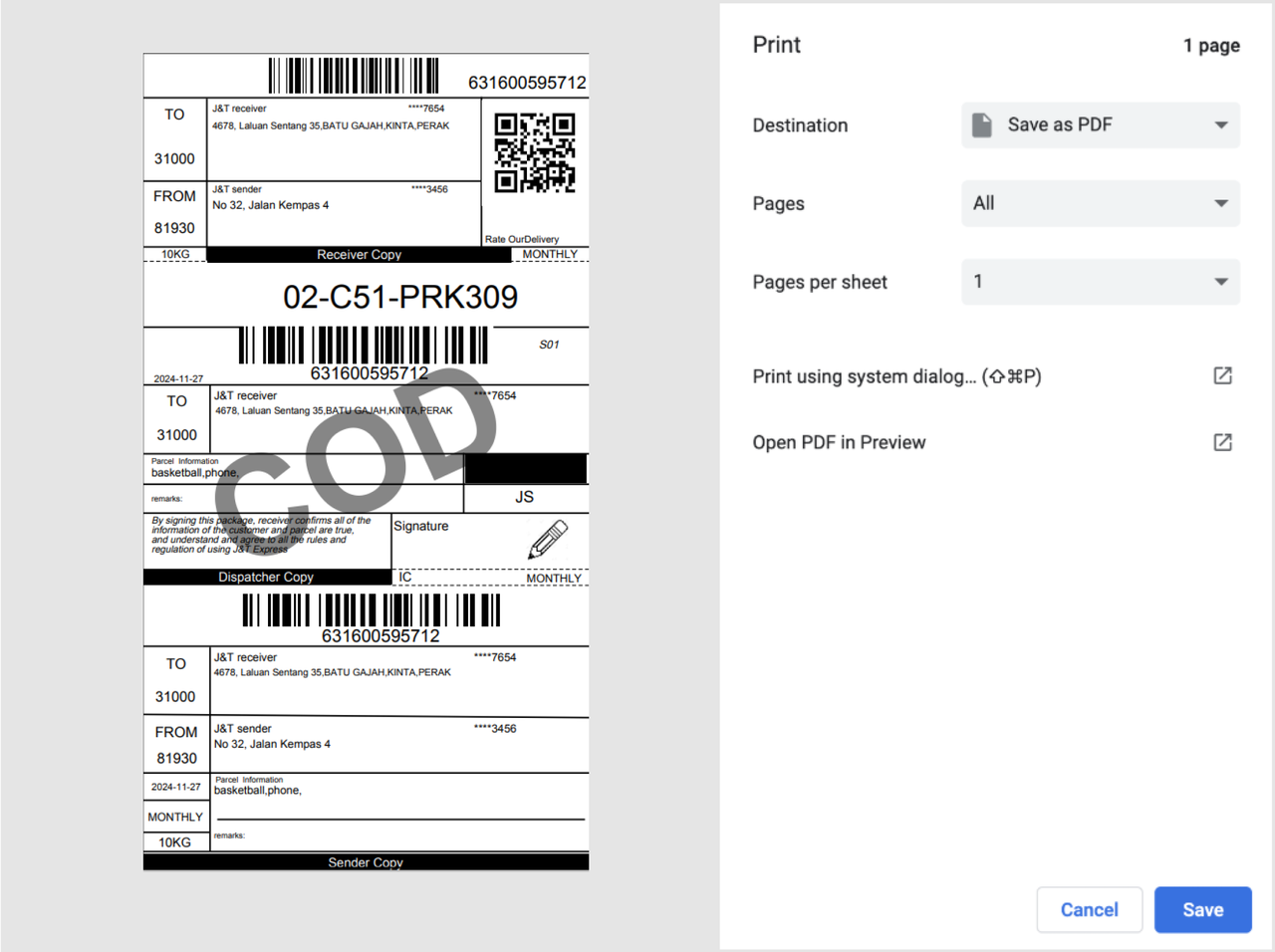
Web Store - With J&T Express Waybill
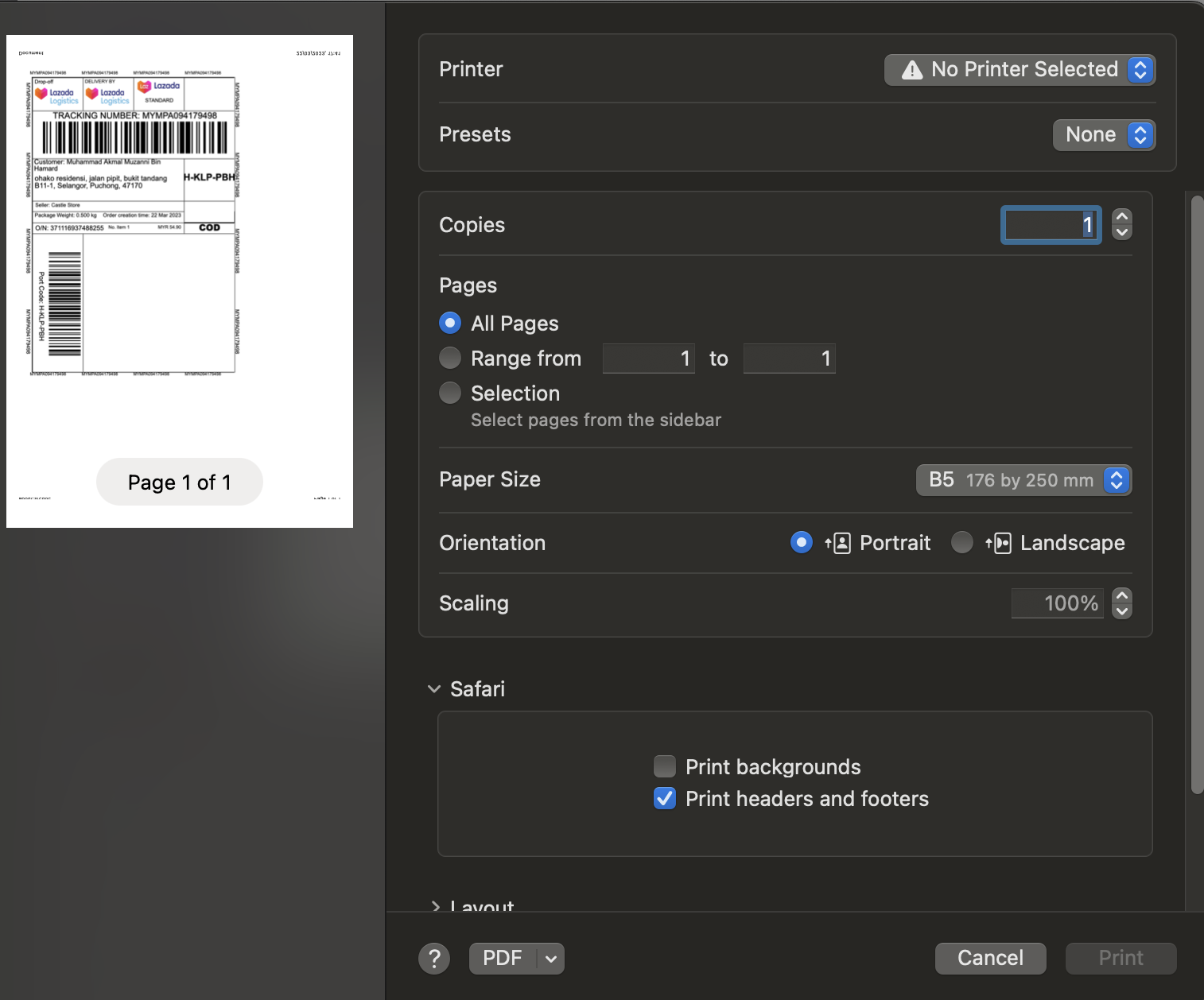
Lazada - Waybill
The print section will appear. You can choose the save file type (pdf, image,...) and click **Save.**